If you're looking for a "delete everything before 2022" button, iPhone doesn't make that clean and safe by default.
But you can delete old photos in date-based chunks—without accidentally deleting memories.
The safe approach: delete in date-based batches
Instead of mass-deleting years, use this pattern:
- Pick a specific day (or small range)
- Review
- Delete the obvious junk first
- Repeat
Option A: Use Photos search (date-based cleanup)
In the Photos app, you can use search to narrow what you're looking at (including dates and times), then select multiple items and delete them.
When you delete, items go to Recently Deleted first (so you can recover if you mess up).
Option B: Use "Years" / "Months" view to select faster
Zoom out to Months/Years to make bulk selection easier, then delete in smaller batches.
The "don't regret this later" checklist
Before you delete an older chunk, scan for:
- Trips, family events, friends you don't see often
- Photos you'll want for nostalgia
- Documents you might need (IDs, receipts—export these first)
The low-overwhelm alternative
If your real goal is "old clutter," try the one-day method:
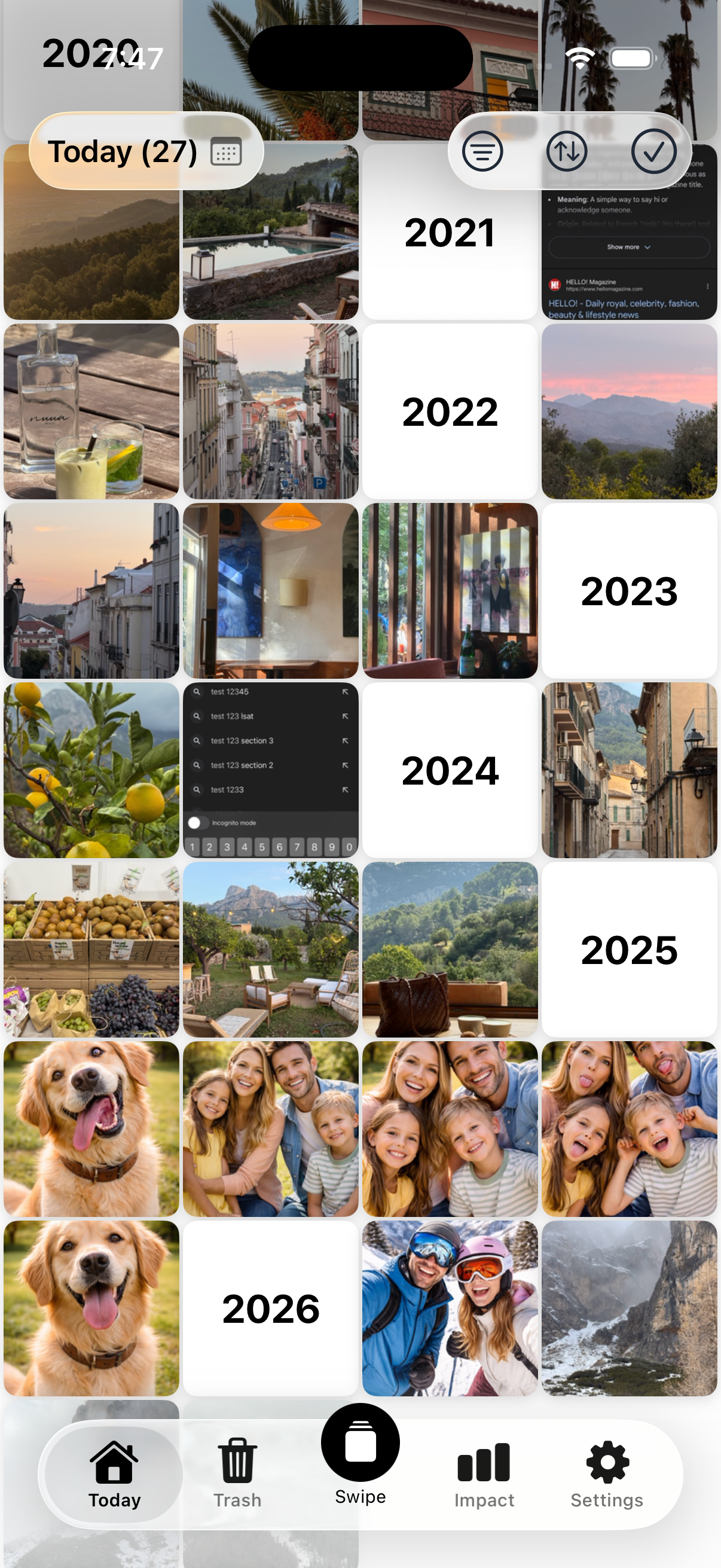
Review the same date across all years (today's date), delete junk, keep memories.
Nostaly is built around that exact workflow.
See How It Works


FAQ
Does iPhone have a built-in "delete photos older than X" feature?
Not as a simple one-click feature inside Photos. The safest approach is still review + batch-delete.
If I delete photos, can I get them back?
Usually yes—deleted photos go to Recently Deleted for a period before permanent deletion.
Why doesn't storage drop after I delete a lot?
If items are still in Recently Deleted, storage may not reclaim until you remove them there too.
What's the best "date unit" to delete by?
Start with one day at a time (easy), then graduate to weeks/months if you're confident.